
Create, Modify, Disable or Reset password for a User for Remote Apps
Overview
This procedure outlines the steps required to create, modify, or disable a user for Remote Apps, ensuring they have appropriate access to necessary applications and resources. Follow these steps to efficiently manage user accounts within the system.
Procedure Details
Each step should be executed in order to ensure the user is set up, modified, or disabled correctly. This includes verifying user information, assigning or updating appropriate permissions, and confirming or revoking access.
-
1Add a new RemoteApp User via AD Manager
There is a delay
When you create a new user, it takes time for this new user to be propagated throughout all the system. Up to a maximum of 30 minutes.
It is recommended that you instruct the user to wait 30 minutes before trying to log into Remote Apps.Instructions
In order to create a user, a U4 ERP Administrator will need to action this on your behalf.
Please follow the below instructions to create a new user:- Launch U4 Desktop icon in Remote Apps
- Login to Business World
- Navigate to Settings
- Go to System administration > User and access > AD Manager
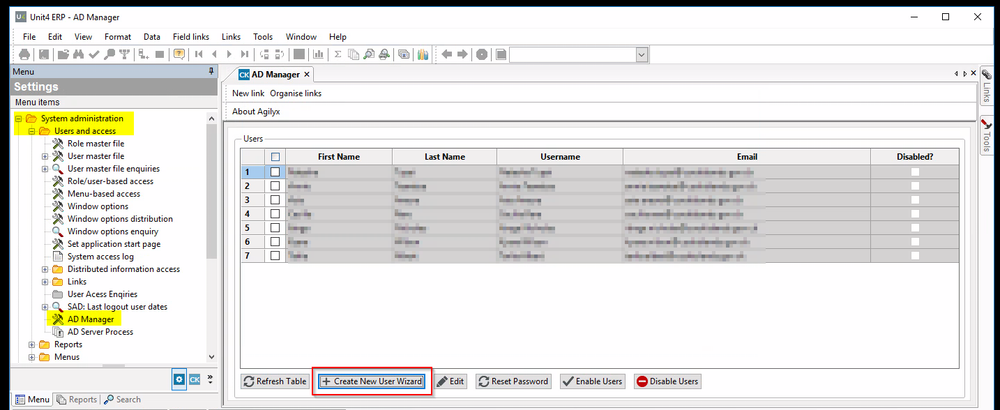
- Select Create New User Wizard
- Enter the users details as prompted in the wizard
- Select the appropriate permissions
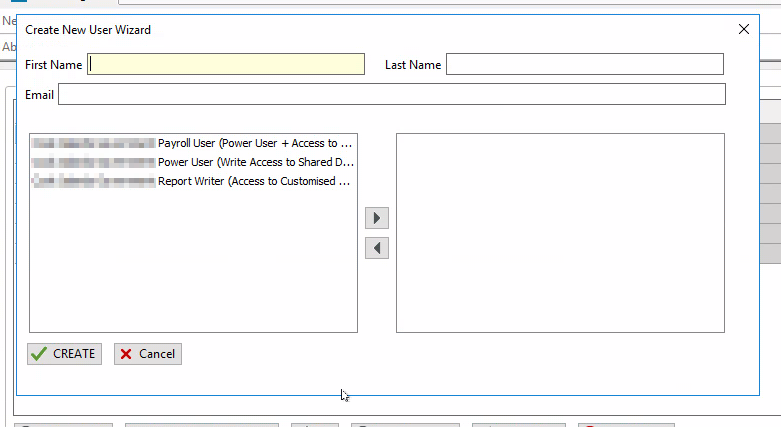
- Select Create
A job will now be created and you can view its run by going to Maintenance of Ordered Reports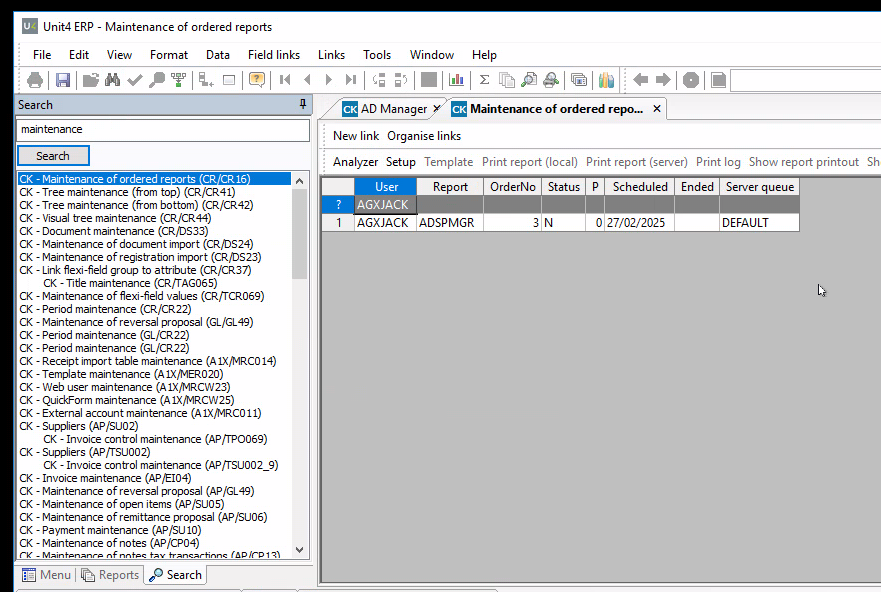
User will receive communication via email
When the job is completed, the newly created user will receive an email and instructions on how to reset their password.
Note: There can be a delay in the job execution, so allow a few minutes for this to process. -
2Modify a Users permissionsIf you have not modified a user's permissions in the previous step, you can do so here.
Please follow the below instructions to create a new user:- Launch U4 Desktop icon in Remote Apps
- Login to Business World
- Navigate to Settings
- Go to System administration > User and access > AD Manager
- Select the Checkbox against the user you want to modify, then select Edit
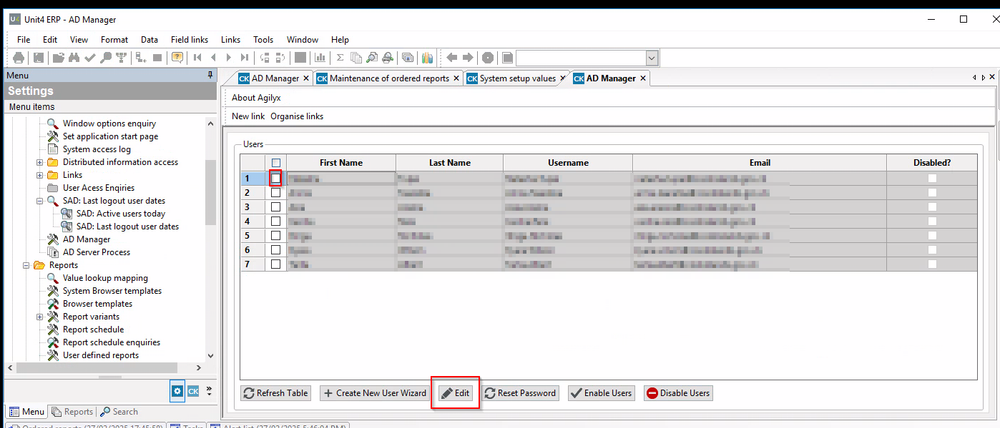
- You can now mix and match the users permissions to suit
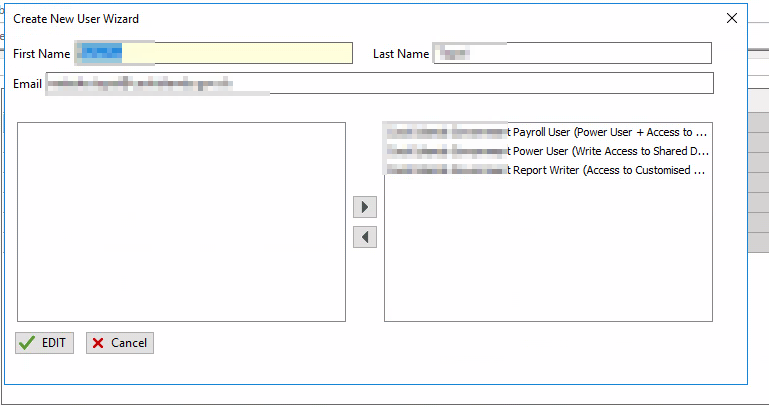
- Once you have done this, select Edit
When you have completed the above tasks, a task will be scheduled to start actioning your request. You can view this in Maintenance of Ordered reports
-
3Disable a UserYou can disable a user by doing the following:
- Launch U4 Desktop icon in Remote Apps
- Login to Business World
- Navigate to Settings
- Go to System administration > User and access > AD Manager
- Select the checkbox against the user you want to Disable, then select the Disable Users button
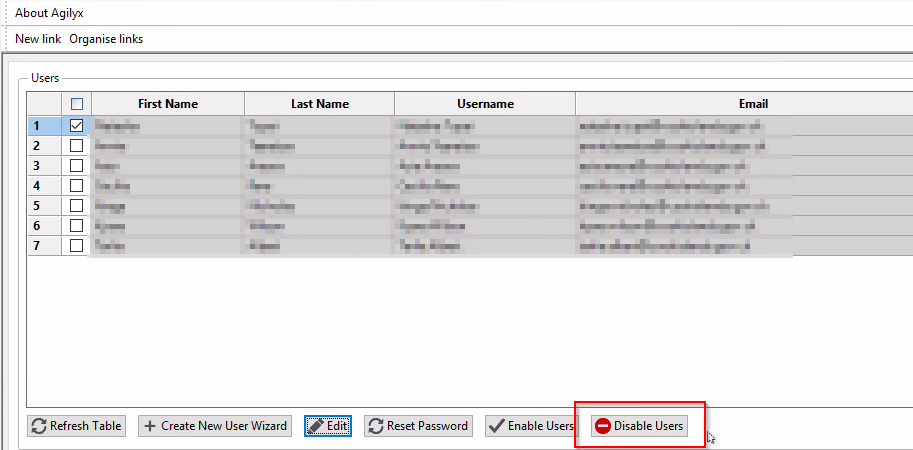
Once you have done the above, a maintenance ordered report will be generated.
-
4Reset a user's passwordAs an administrator of the U4 Application, you can also reset a Remote App users password. Please note, the Remote App password is different from their U4 application password.
You can also complete this via AD Manager:- Launch U4 Desktop icon in Remote Apps
- Login to Business World
- Navigate to Settings
- Go to System administration > User and access > AD Manager
- Select the checkbox against the user whose password you want to reset.
- Select the Reset Password option