
Login to Azure Virtual Desktop Remote App - Web
Overview
This procedure outlines the steps necessary to successfully log in to the Azure Virtual Desktop Remote App. It is designed to guide users through the process with clarity and precision, ensuring a seamless experience.
Purpose
The purpose of this procedure is to provide a reliable method for accessing the Azure Virtual Desktop environment through the Remote App, enabling users to leverage cloud-based resources effectively and securely.
Instructions
Follow the steps outlined below to complete the login process. Each step is crafted to provide essential guidance and facilitate a smooth user experience.
-
1PrerequisitesIf an account has been created for you, you would have received an email informing you of your Agilyx Cloud supplied account and requesting you to change your password.
Ensure you complete these steps:- View the email you have received and note your username (firstname.lastname)
- View/find your temporary password
- Change your password
Once you have done the above steps, please continue -
2Login with your Agilyx Cloud accountYour Agilyx Cloud account operates slightly differently in the Cloud.
- Get your username (you can find this on the email that was sent to you when your account was created)
- Append the domain @au.agilyx.cloud to the end of your username. For e.g., john.smith@au.agilyx.cloud
Navigate to Remote Apps and login
- You can access Remote Apps using this link - Agilyx Cloud Remote Apps
- You will be prompted to login to Microsoft Entra, use your Agilyx Cloud supplied credentials, noting the domain:
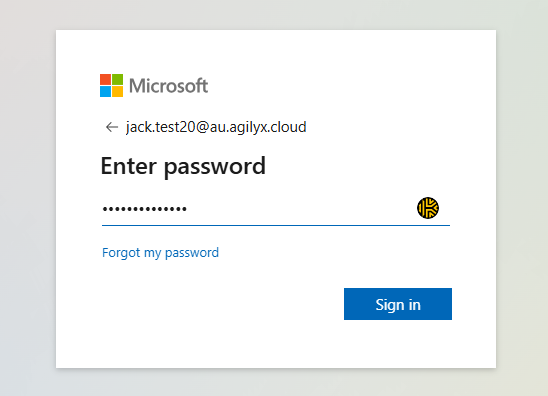
- Enter your password
Set up Multifactor Authentication
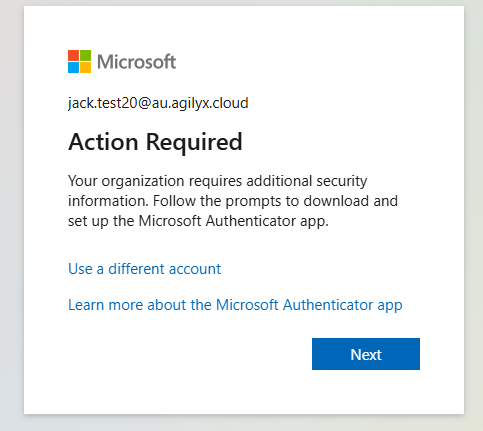
- Action Required: You will be prompted to configure the account with multi-factor authentication. This is a required process which you'll need to complete. Select Next
- Follow the prompts on the screen. Note: Agilyx Cloud recommends that you use Microsoft Authenticator, however, you may use a different authenticator app
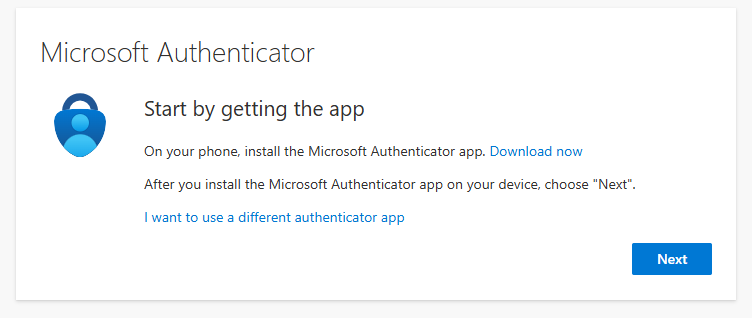
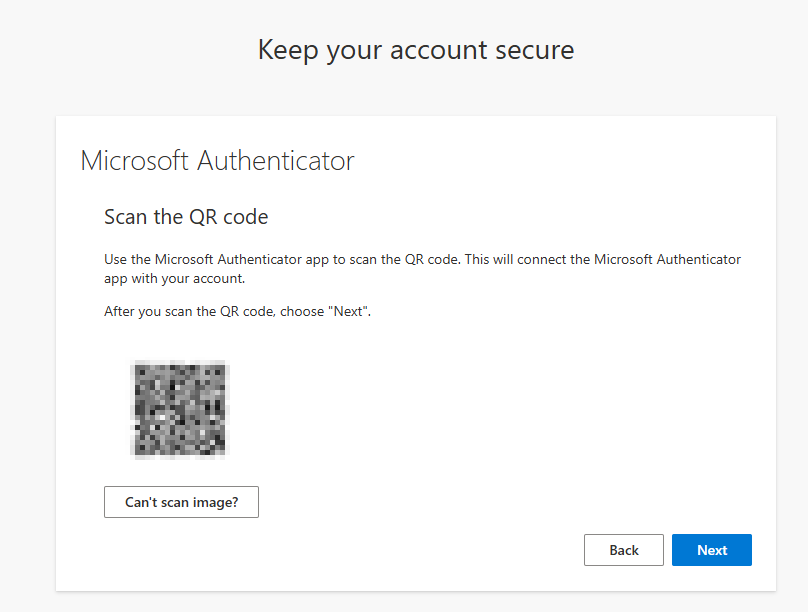
- Either open/download the Microsoft Authenticator or third-party authenticator application on your mobile device, and follow the instructions on the screen by scanning the QR code
- Once you have completed the above, you will be redirected to Agilyx Cloud Remote Apps pages