
Reset Your Password
Procedure Overview
This procedure outlines the steps required to reset your password efficiently and securely. It is designed to assist users in regaining access to their accounts by creating a new password.
Importance of Password Security
Ensuring your password is secure is crucial for protecting sensitive information and maintaining privacy. Follow the steps below to reset your password while adhering to the best security practices.
-
1You will receive your Agilyx Cloud credentials via emailWhen you are created an Agilyx Cloud account via AD Manager, you will receive an email of your
- Username
- Password
In addition to this, you will receive a link to change your password.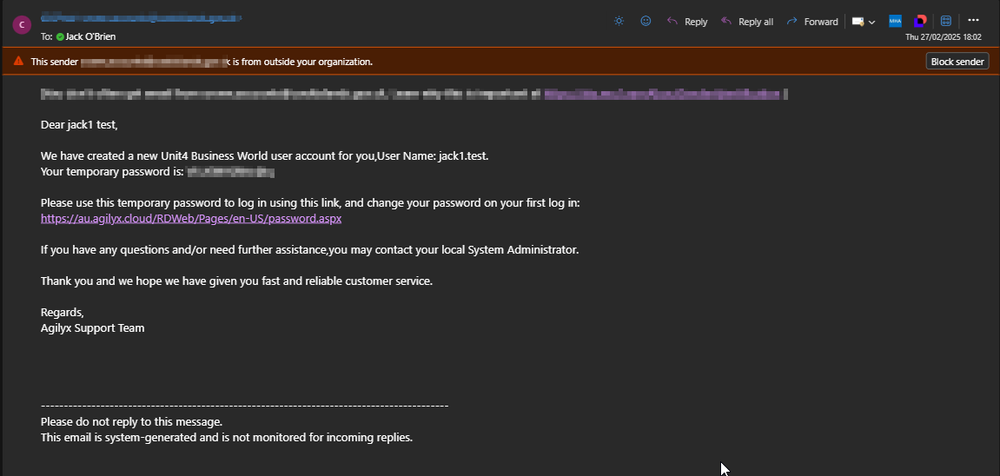
The email will come from either:- Your custom configured email address
- Your standard Agilyx Cloud provided environment-based email address
Check your Junk Mail for any missed emails.
-
2Navigate to Password Reset URLAgilyx Cloud uses the original RDWeb Password reset page. You can access this page here - RDWeb Password Reset
Reset your password
You will be prompted for the following information:- Your username (ensure you provide the domain AUAD in front of your username. See screenshot for example)
- Your existing/temporary password
- Your new password
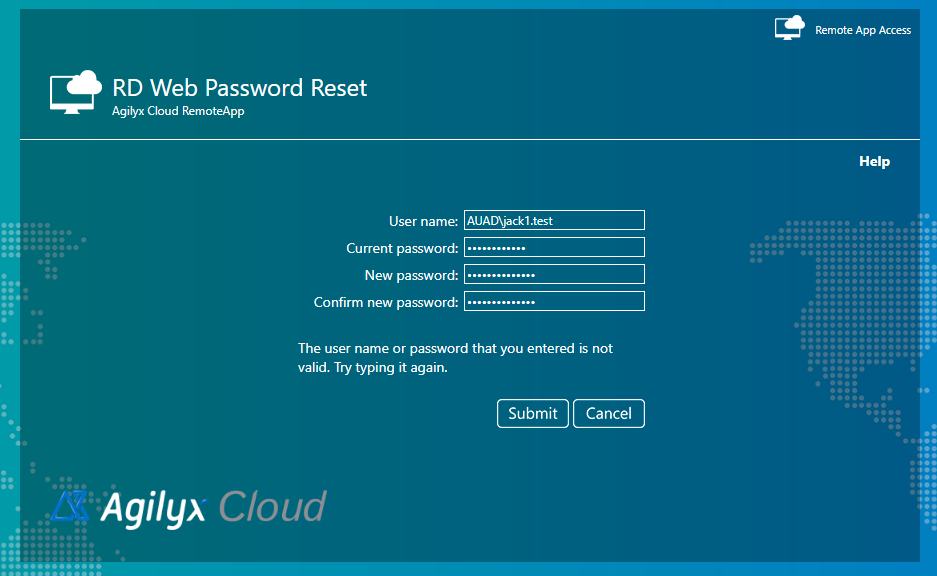
Ensure you follow the password policy details here:- Minimum 12 characters
- At least 1 uppercase letter
- At least 1 special character
- At least 1 numeric value
Once you have completed this, you will receive a confirmation message as per below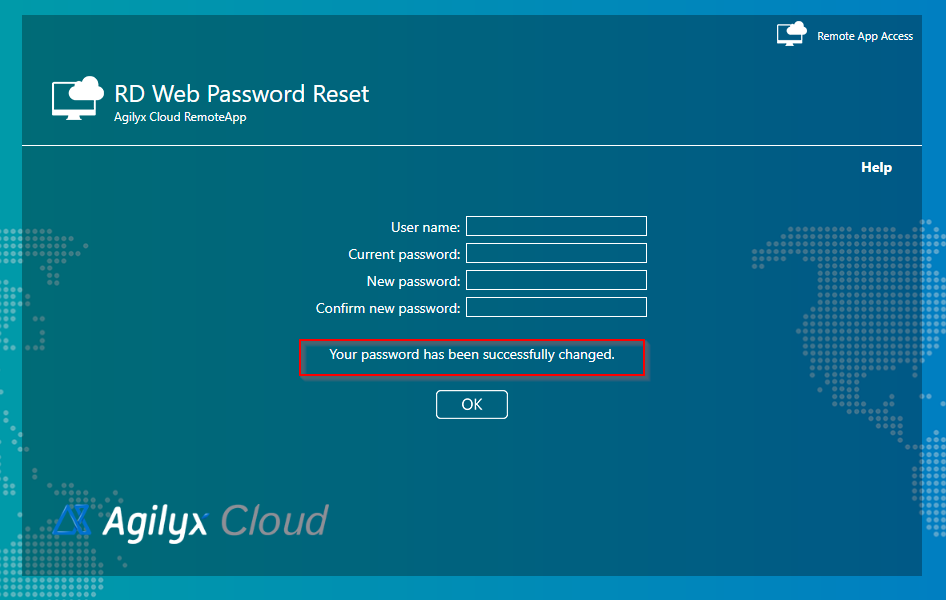
You may now login to Remote Apps with your new password. -
3What if you've lost or forgotten your password?Please contact the administrator of your U4 application.
They are able to reset your password via AD Manager.