Login to Azure Virtual Desktop
Overview
This procedure outlines the steps required to successfully log into Azure Virtual Desktop using Remote Desktop. Follow these instructions to ensure a smooth and secure access to your virtual environment.
Requirements
- An active Azure account
- Access to Azure Virtual Desktop
- Remote Desktop client installed on your device
Procedure Purpose
This procedure is intended to guide users in accessing their Azure Virtual Desktop, providing a reliable and efficient method for remote work.
-
1Download/Install Windows AppGone are the days where we were required to download the recommended RDP file to login to our Remote Application. Now we use a more appropriate and user friendly method.
- Go to the Microsoft Store, or navigate to this link - Windows App - Free download and install on Windows | Microsoft Store
- Select Download
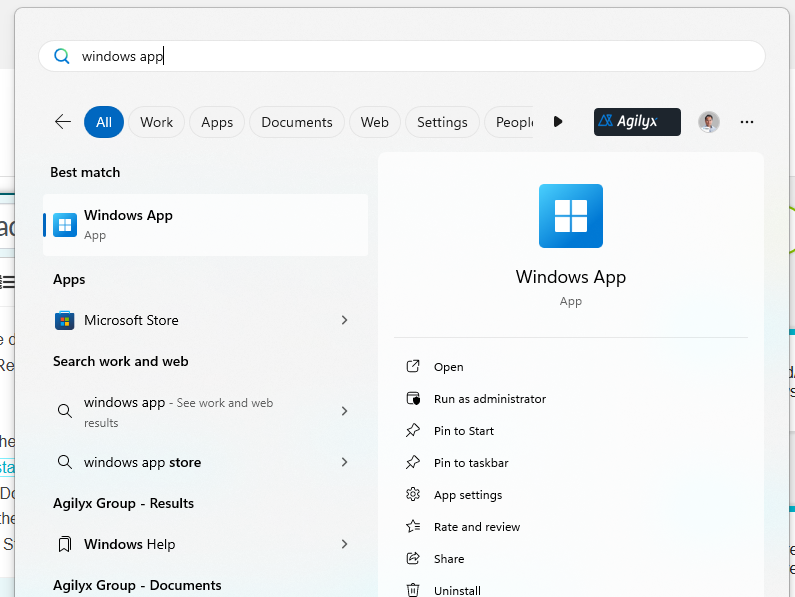
- When the application is installed, go ahead and open it up (Search Windows App in your Start menu)
-
2Enter Agilyx Cloud Remote App CredentialsIf you are a Microsoft organisation, you will likely find that you are already logged into Windows App. Instead, we now want to login with our Agilyx Cloud credentials.
If you are logged already logged in
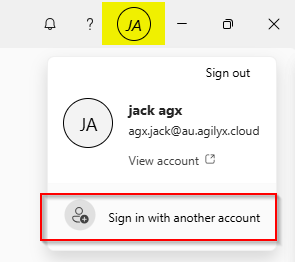
- Select your profile icon in the top-right corner of Windows App
- Select Sign in with another account
- Continue from Step 3 in the below steps.
If you're not already logged in, use these options
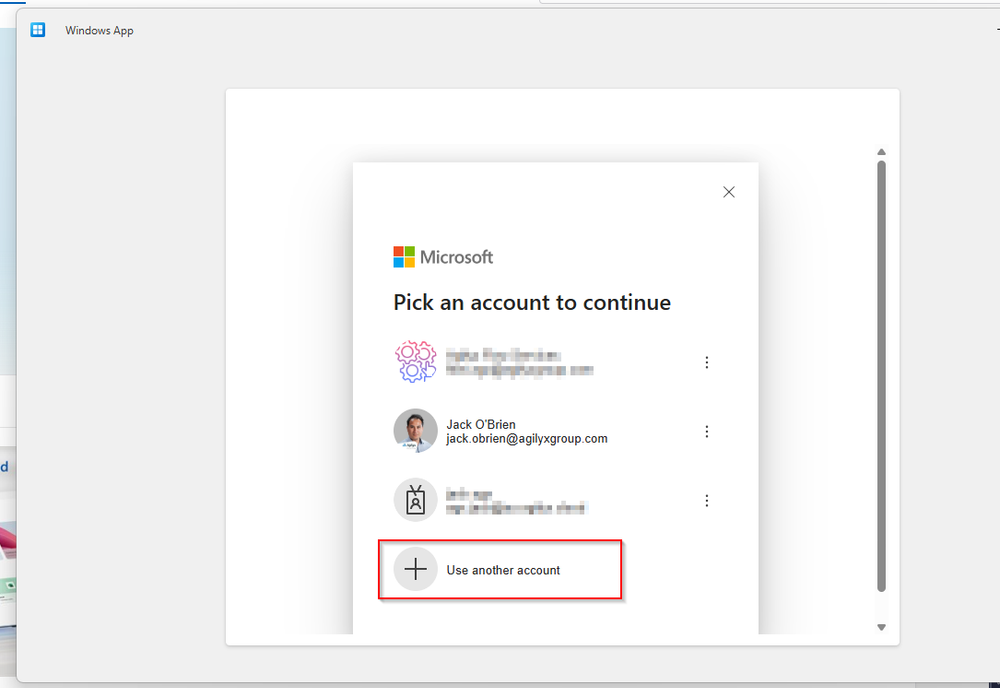
- (Use this if you are not automatically logged in) Select the SignIn button
- Select Use another account
- Enter your Agilyx Cloud credentials (remember, these were sent to you via email when your U4 Administrator created you a desktop account).
Note: the domain is au.agilyx.cloud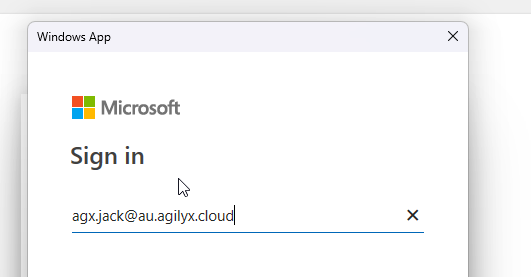
- Enter your password and complete Multi-factor Authentication
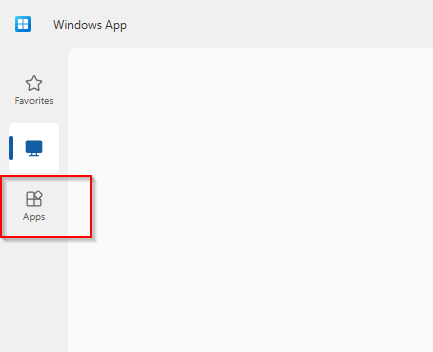
- After you've logged in, go to apps (left navigation bar)
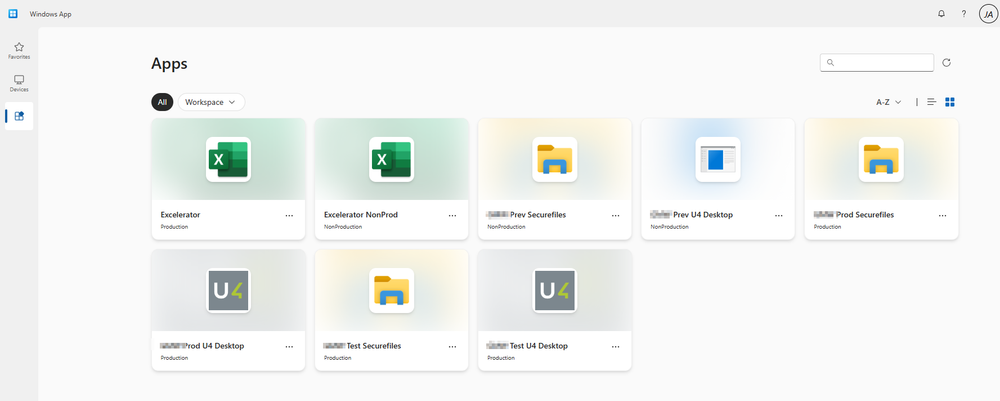
- You will now see all your apps and you may connect
-
3Connect to Remote AppNow that you can see the list of applications that you can connect to, simply click on the app you want to use.
You will see a pop-up connection box like so: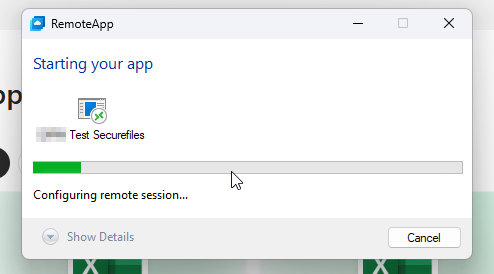
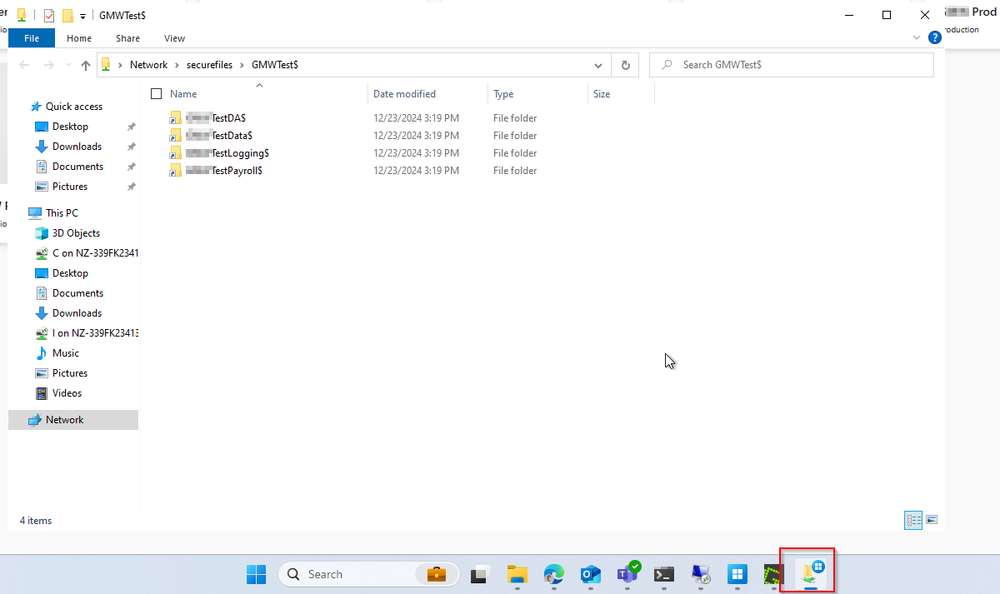
After a few seconds, you will be presented with your remote application. You are abel to verify this by seeing the little remote application icon in your taskbar (see red box near bottom)