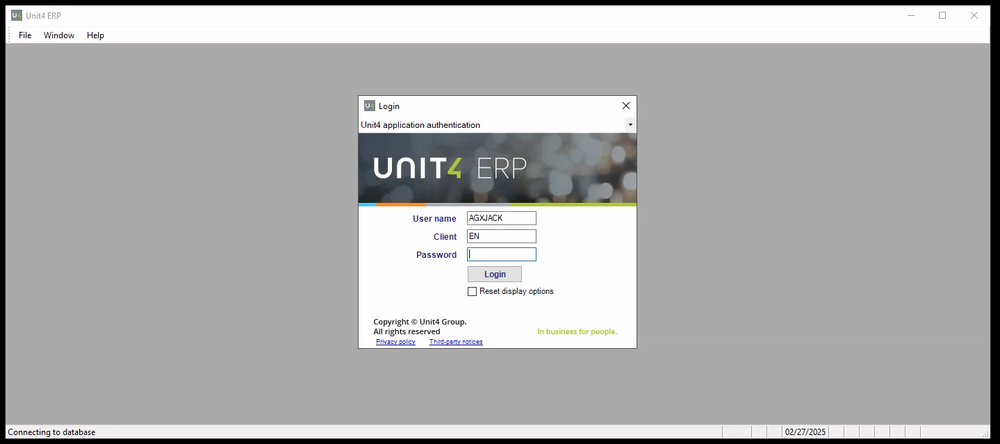
Launch a Remote App
Overview
This procedure outlines the essential steps to launch a remote application using Azure Virtual Desktop. The guide is intended for IT administrators and professionals who are familiar with Azure services and are tasked with managing virtual desktops and applications.
Prerequisites
- Ensure you have an active Azure subscription.
- Confirm that you have the necessary permissions to configure Azure Virtual Desktop settings.
- Verify that the target application is properly installed and configured on the virtual machine.
Procedure
Follow these steps to successfully launch a remote app:
-
1Login to Remote Apps
- Navigate to remote apps - Agilyx Cloud Remote Apps
- Login with your supplied Agilyx Cloud credentials
-
2WorkspacesYou will be presented with two workspaces. These are segregated by
- Production Workspace
- NonProduction Workspace
The workspaces visually inform you what application you are going to connect to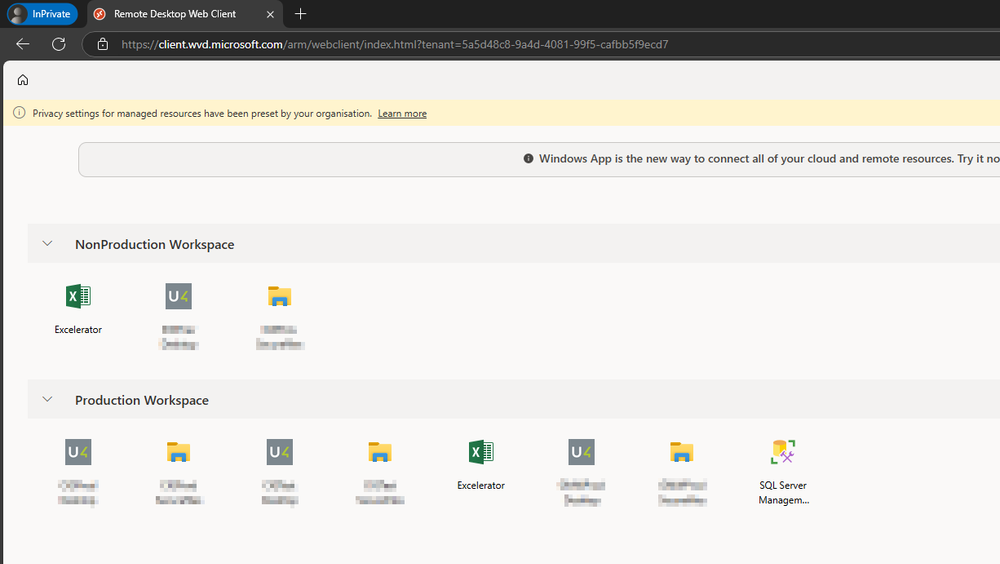
-
3Launching an application
- Search for the application that you want to access
- Click on it
- You will be prompted for consent to allow the remote computer to access resources on your computer. Select the options that apply to you.
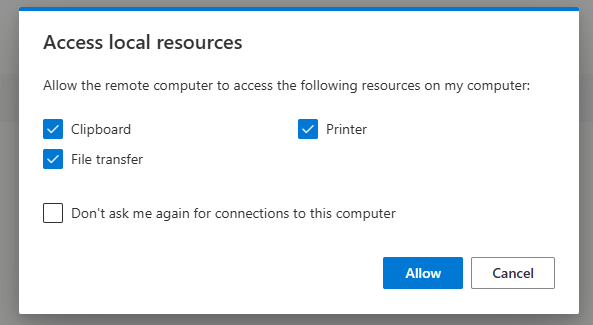
- Select Allow
The application will begin to launch in a new tab. You will see a pop-up dialog box. You can decide to wait until the desktop appears, or you can select the Show Details tab to view the login process.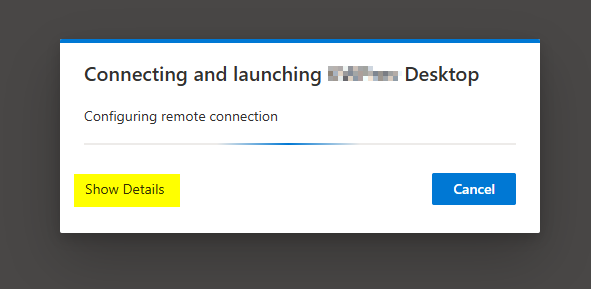
-
4You will not be prompted for credentials when launching the remote app. Once login is successful, you should see your remote app in the web.